
Developers release a ton of updates for their games and that is a great thing. They fix bugs, add new features, improve performance, and add new content all the time. However, sometimes these game updates can cause crashes, break mods, lower FPS, changes mechanics, or remove content you actually liked. When something that happens, we often wonder if there is a way to download older builds of games from Steam? The answer is yes; there are two methods actually that let you download older version of games from Steam.
Steam does not provide a simple “Download Previous Version” button for most games. However, older builds can still be available through Steam’s depot system, depending on the game and publisher settings. So, this guide explains every step you need to take in order to download older builds from Steam.
Before you can start knowing that it does not work for every game. Some older builds are restricted, and some games require online validation to run. In case you’re downloading a multiplayer game or try to play the MP mode of a video game, it may force you to update. Speaking of updates, Steam itself might try to update at some point.
How to Download Older Versions of Steam Games
There are two ways to do this:
- Download Older Steam Versions Using Steam Console
- Download Older Steam Versions with DepotDownloader
Method 1: Download Older Steam Versions Using Steam Console
The easiest method is to use Steam’s built-in method when it is supported.
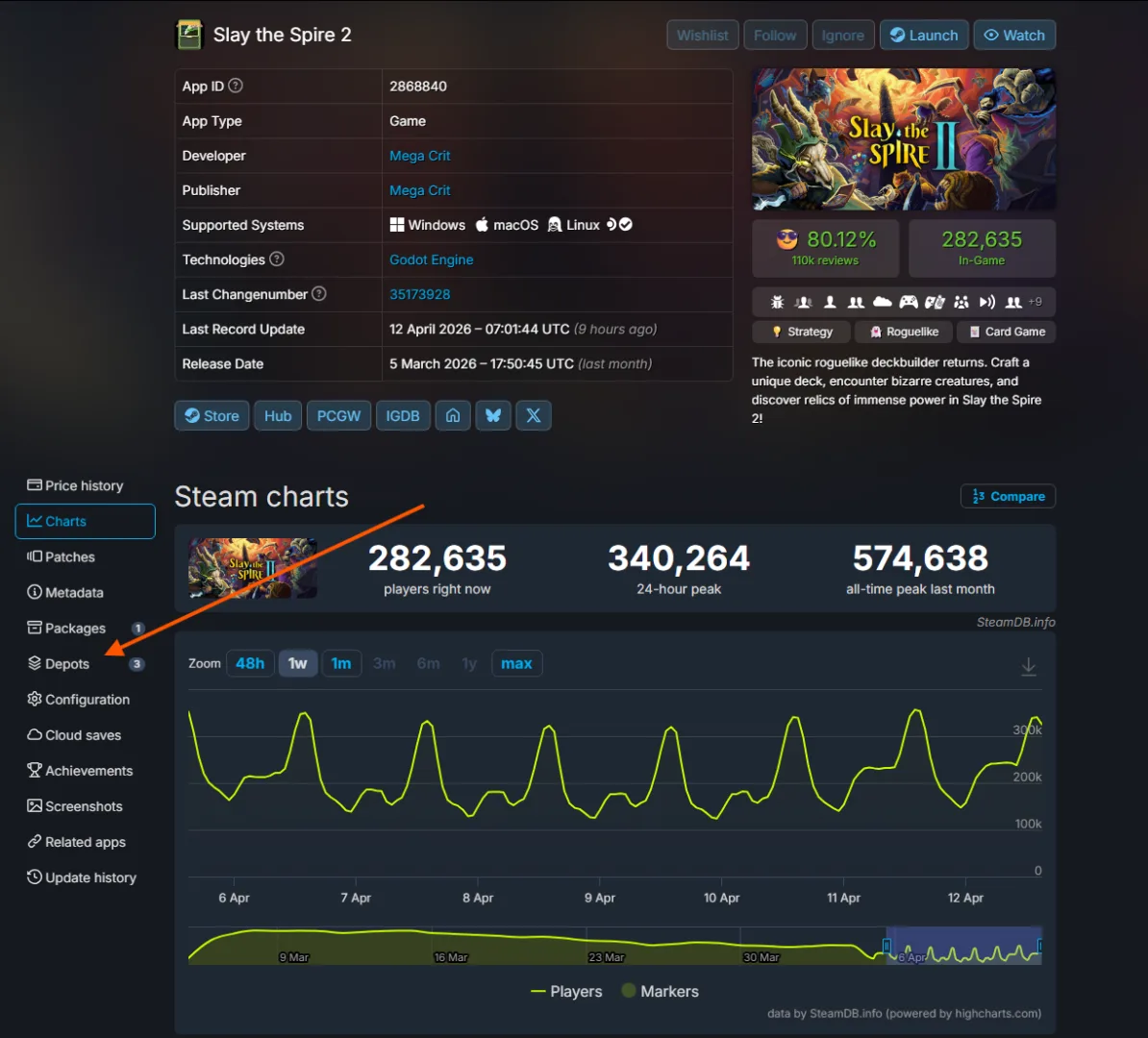
- Open SteamDB
- Search the game you want to download
- Open its page
Click on the Depots Tab and you may see multiple depots for the game. Select the one that matches you platform (Linus, Windows). Some games separate executables, content packs, or DLC into different depots.
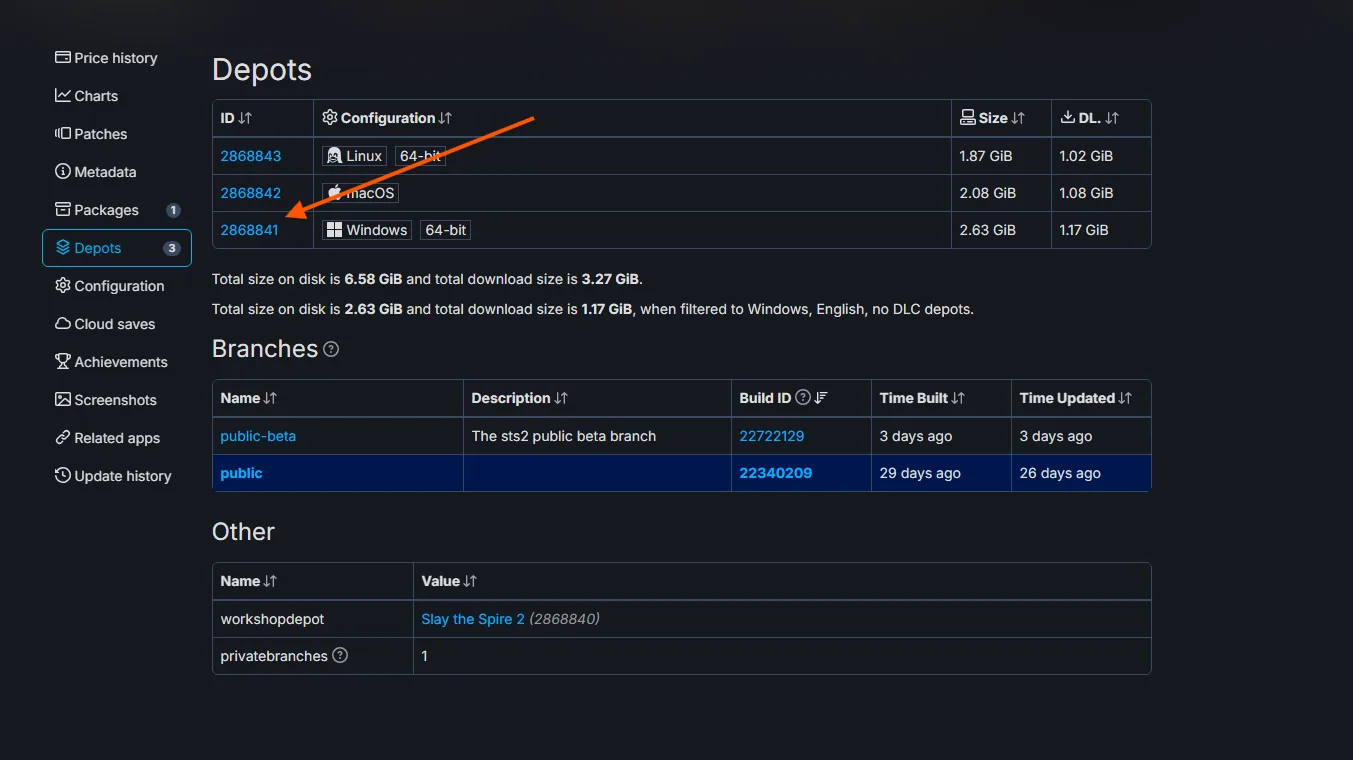
Click on the depot ID that matches your platform then click on Manifests. Copy the manifest ID for the build you want and open the Steam Console. SteamDB gives you the opention to open Steam Console right there from the Manifests tab. It is on the top right next to “Depot Downloader” button.
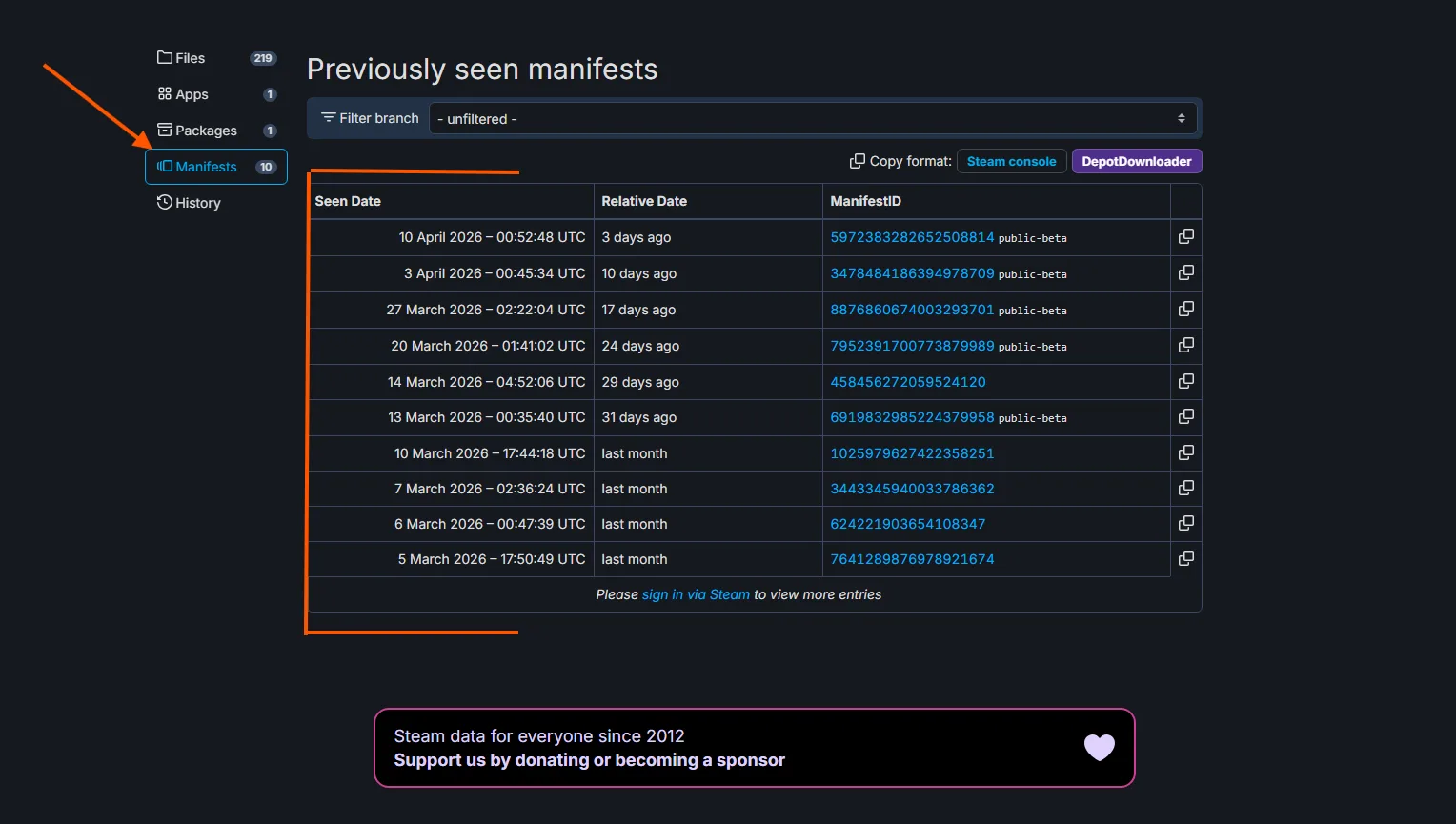
You need to be signed in for this to work. Copy the MenifestID into the Steam console and it should start downloading.
Method 2: Download Older Steam Versions with DepotDownloader
If Steam Console fails, use DepotDownloader. It is a third-party command-line tool used to download Steam depot content. The option to use DepotDownload is right next to the Steam Console button on SteamDB. The button will take you to the official Github of DepotDownload where you can download the software.
Download and unzip the folder somewhere easy to access, such as Desktop.
On Windows:
- Open the folder
- Click the address bar
- Type
cmd - Press Enter
Run the command in the following format (Copy and paste from SteamDB)
- DepotDownloader -app APPID -depot DEPOTID -manifest MANIFESTID
You may be asked to log in and enter a Steam Guard code. Downloaded files are usually placed in a depots folder inside the tool directory.
How to Install the Old Version
Once you have the older Steam files, the next step is to install the game. Make sure to back up your current game files elsewhere before installing an older build. Also back up your save files. Now, copy the old version files into the game install folder where the game was originally installed. Basically, replacing new files with the older build. Overwrite when asked.
Steam may try to restore the newest version.
You can reduce that risk by:
- Setting updates to “Only update when launched”
- Launching in Offline Mode
- Keeping a backup of the old version files
- Replacing files again if Steam updates them
There is no guaranteed permanent block for every game.