


NFS Heat takes the best parts of the recent NFS titles and creates a unique experience. With the game being delayed a year, one would expect that the devs would have done a better job optimizing the game. But, that’s not the case as NFS Heat faces errors and issues like crashing at launch, black screen, and DirectX error. The following fixes will help PC users resolve Need for Speed Heat’s errors and crashes.
NFS Heat DirectX Error Fix
Need for Speed Heat players report that it is crashing with the DirectX error. In most cases, such an error occurs on a relatively older GPU. But, in the game case of NFS Heat, the DirectX error followed by a crash occurs for PC users with the latest GPUs and CPUs. While developers are looking into the problem, here is a workaround that might help you.
Fix #1: Lower Graphics Settings
The game is crashing with the DirectX error because the GPU is under a lot of rendering load at Max settings. If you are playing NFS Heat at max settings, lower the graphics settings to High or Medium and the error will be fixed.
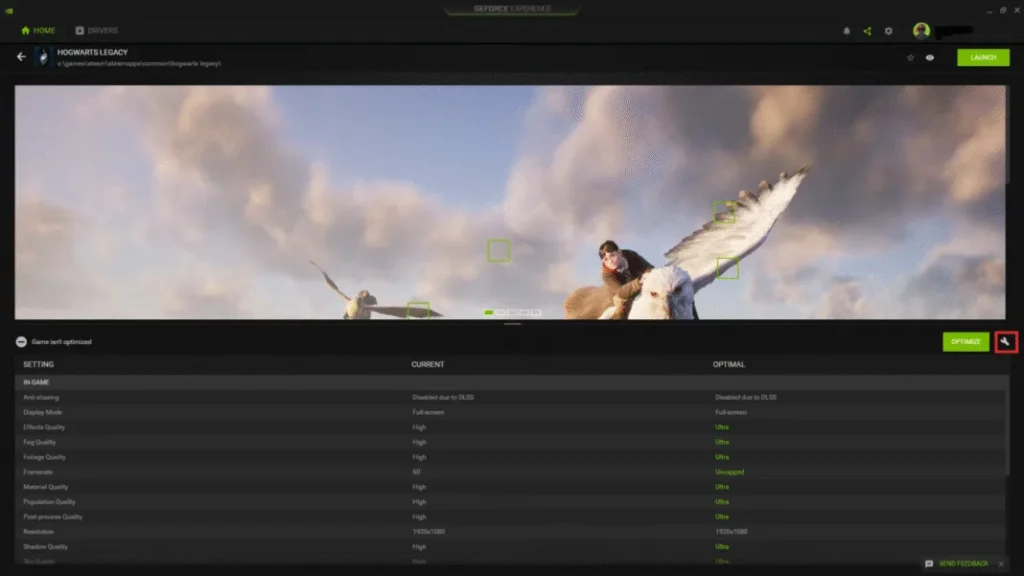
If you are experiencing the DirectX error at startup, you can use GeForce Experience to lower the game’s graphics settings.
- Open GeForce Experience and select the game
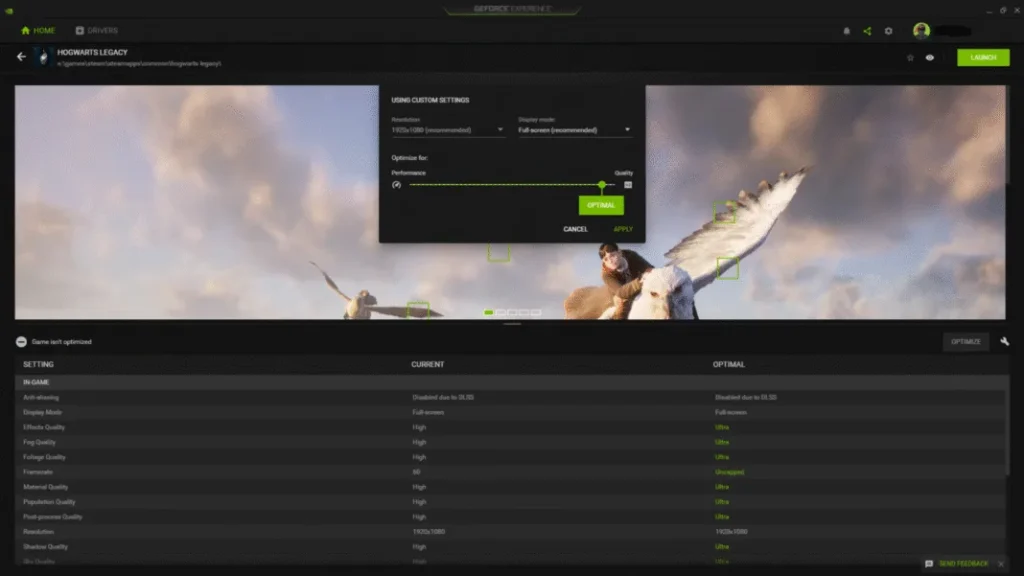
- Click on the “Custom Settings icon” right next to the Optimize button
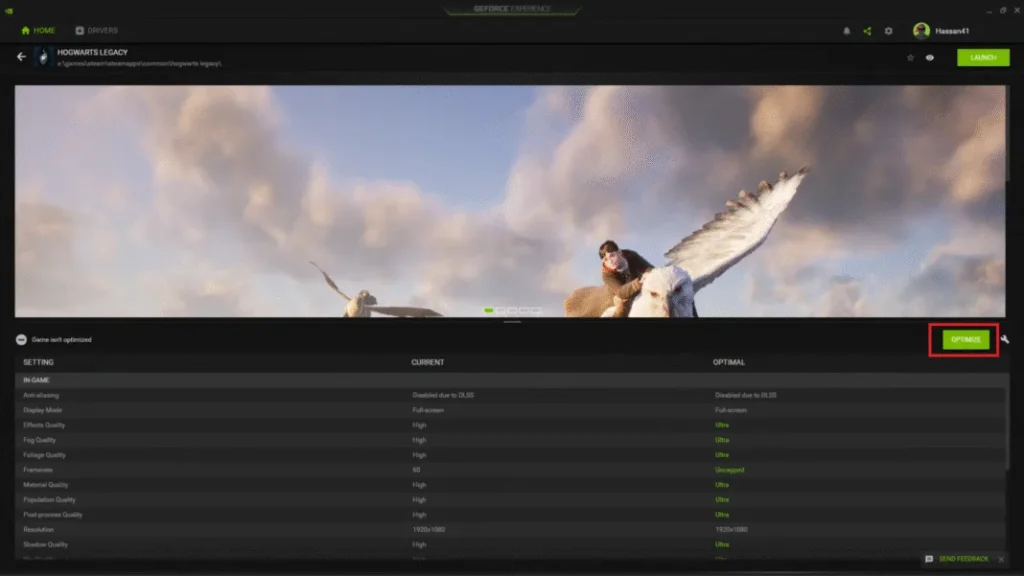
- Drag the slider to performance, hit apply, and click Optimize.
- Play NFS Heat and the DirectX error is fixed
Fix #2: Limit Max Frame Rate
Playing games at unlocked FPS has its perks low input latency and smooth gameplay. However, it can put the GPU and the CPU under stress, which leads to games crashing to the desktop. If you are playing NFS Heat at an unlocked FPS, it is crashing the game with the DirectX error. Limit the game’s max FPS to reduce the GPU and CPU load and fix the error.
- Open the Nvidia Control Panel.
- Click “Manage 3D Settings” and open the Program Settings tab.
- Select Need For Speed Heat from the drop-down menu.
- Scroll down, enable Max Frame Rate, and set a value.
Note: Unless you use a Freesync or G.sync display, your Max Frame Limit should be 1/2, 1/3rd, or 1/4th of your monitor’s refresh rate. Otherwise, the game will feel jittery.
Fix #3: Enable Debug Mode
Graphics cards from AIB partners like Zotac or GIGABYTE are either factory overclocked or use higher GPU and Memory clocks than Nvidia reference GPUs. This is crashing NFS Heat with the DirectX error and it can be fixed by enabling the Debug mode. Enabling it forces the GPU to use Nvidia’s recommended GPU and memory clocks. Open the Nvidia Control Panel > Help > Debug Mode.
Fix #4: Update DirectX
NFS Heat is crashing with the DirectX error because of missing or corrupt DirectX files. Install or update DirectX to fix the error.
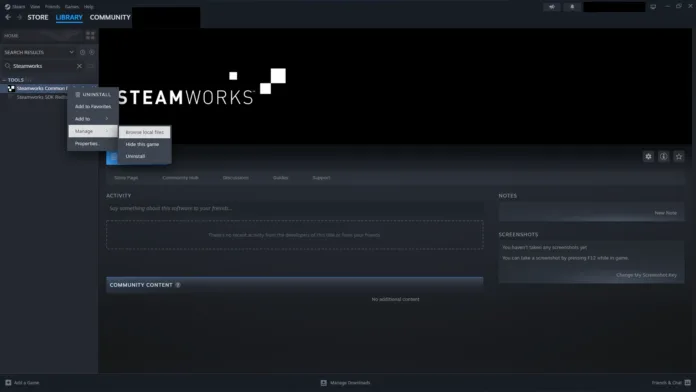
- Open Steam library.
- Type ‘Steamworks’ in the search bar.
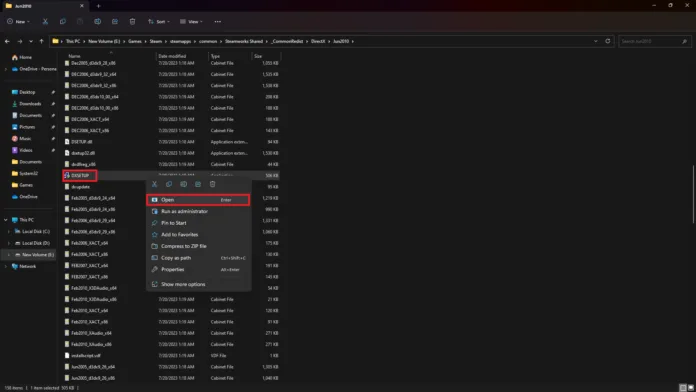
- Right-click “Steamworks Common Redistributables” > Manage > Browse local files.
- A new Explorer window will open.
- Go to _CommonRedist > DirectX > Jun2010.
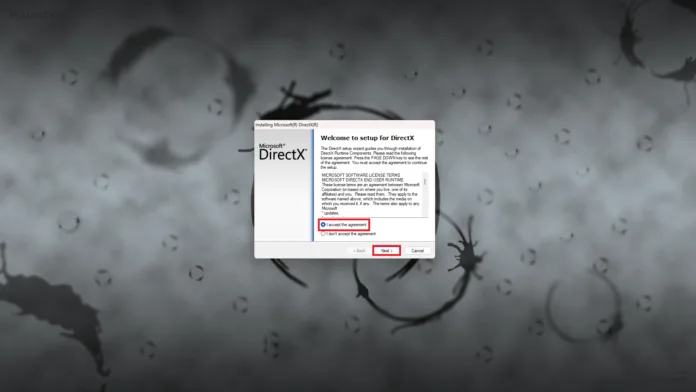
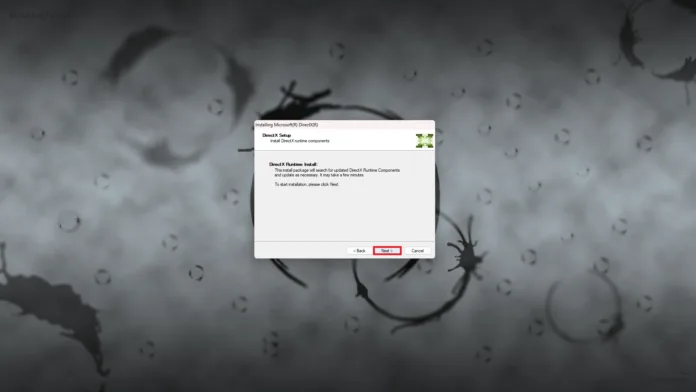
- Run the DXSETUP and follow the onscreen prompts to install DirectX.
- Play Need For Speed Heat and the DirectX error is fixed.
Fix #5: Delete DirectX Shader Cache
Microsoft frequently rolls out Windows Updates, which can sometimes corrupt the DirectX shader cache. Need For Speed Heat is crashing with the DirectX error due to a corrupt cache. Delete the cache and a new one will be created the next time you play the game. This will fix the DirectX error.
- Open Windows Settings.
- Go to System > Storage > Temporary Files.
- Select DirectX Shader Cache and click “Remove Files”.
- Launch NFS Heat and it won’t crash again with the DirectX error.