

DXGI_ERROR_DEVICE_HUNG (0x887A0006) error code plagues a number of games and Death Stranding 2 is its latest victim. There is nothing more annoying than a DXGI_ERROR_DEVICE_HUNG crash while trying to travel across the map with heavy cargo on your back in Death Stranding 2.
Crashing often happens during world traversal, asset streaming, or high-load moments due to the Decima engine’s sensitivity to frame generation, driver issues, overlays, overclocks, or high GPU stress.
Thankfully, DXGI_ERROR_DEVICE_HUNG error has some working fixes you can try. Not everything will work for you, but something will because one of the following fixes gets rid of DXGI_ERROR_DEVICE_HUNG crashing in Death Stranding 2.
Fix #1: Disable Frame Generation (Most Common Fix)
While DLSS/FSR is a great tech, they both can be responsible for crashing with DXGI Error Device Hung error message. The DLSS/FSR feature in Death Stranding is inside the graphics settings option. Turn DLSS/FSR off, restart your game. Many with RTX 4070/4080/5090 report stable 60+ FPS at high/very high settings + RT after disabling it.
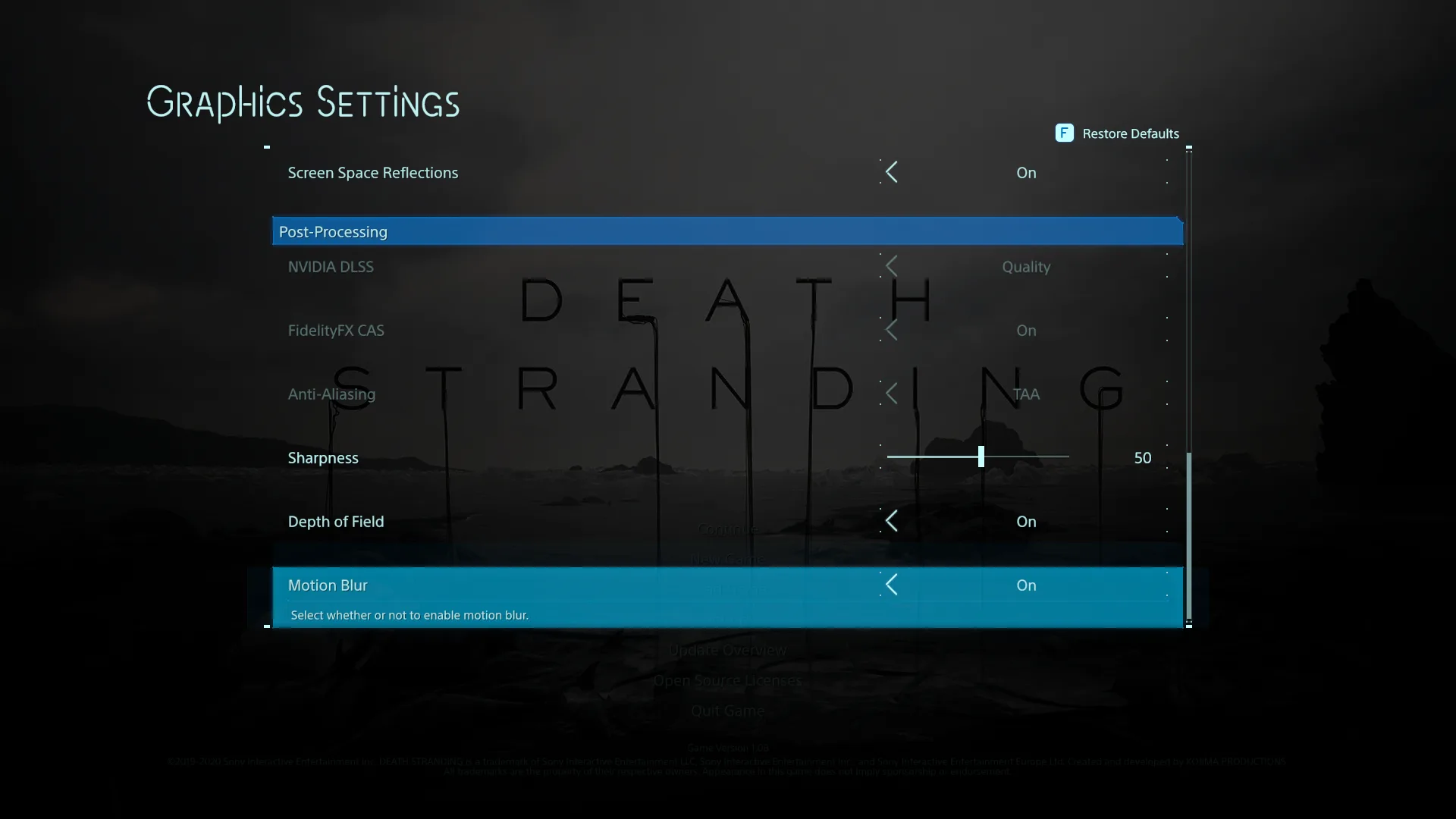
Know that if your option to turn off DLSS is greyed out, it is like due to the game’s settings in Nvidia GeForce Experience are set to “optimal.” Change it to anything else and it should fix the DLSS option greyed out issue in Death Stranding 2.
Fix #2: Disable All Overlays
Often in many games start crashing due to third party overlays from Steam, Discord, Nvidia, AMD, and others. What you need to do is turn off all third-party overlays for Death Stranding 2.
- Steam: Right-click Death Stranding 2 → Properties → Uncheck “Enable Steam Overlay”.
- Discord: Settings → Overlay → Disable in-game overlay.
- NVIDIA/AMD: Disable GeForce Experience/AMD Software overlays or full in-game features.
- Also close recording software (OBS, etc.) or NVIDIA App shadowplay.
Fix #3: Disable Hardware-accelerated GPU Scheduling
Windows 10 and Windows 11 feature Hardware-accelerated GPU Scheduling and this is a feature that doesn’t work well is some games. It is always best to keep this off by default to avoid issues in most games you play, including Death Stranding 2. Hardware-accelerated GPU Scheduling can cause DXGI Error Device Hung Crashing Error on PC while playing DS2.
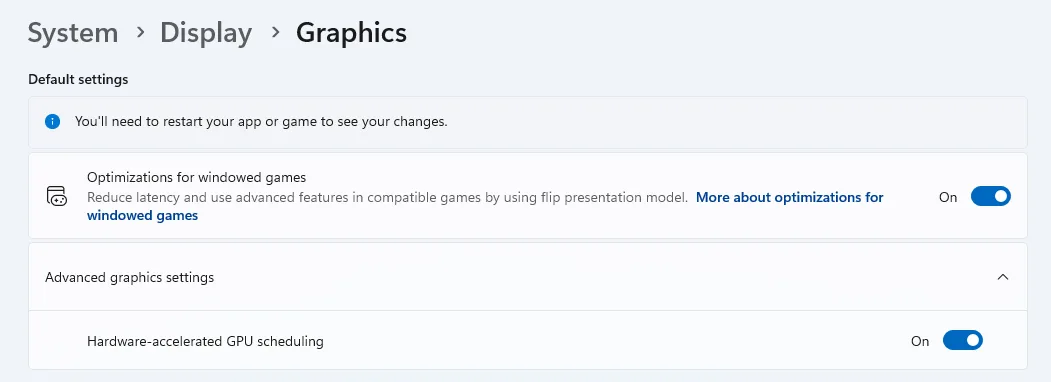
To turn disable Hardware-accelerated GPU Scheduling on Windows 10 and 11, type graphics settings in the search bar and open your graphics settings. The path is System > Display > Graphics. Click on Advanced Graphics Settings (Windows 11) and you’ll see the option to turn off Hardware-accelerated GPU Scheduling.
Fix #4: Reduce GPU Load
DXGI crashing is linked to issues with graphics hardware or software. And sometimes the fix is as simple as reducing load on your graphics card. You can fix the DXGI ERROR DEVICE HUNG crashes in Death Stranding 2 by reducing the GPU load.
- Open NVIDIA App.
- Go to the “Graphics” tab.
- Select “Death Stranding 2: On the Beach” from the list.
- Scroll down to “Driver Settings”.
- Set a low FPS value for in “Max Frame Rate” option.
Fix #5: Increase TDR Delay (Timeout Detection & Recovery)
Increasing TDR delay helps fix DXGI Error Device Hung Crashing issue in Death Stranding 2 because it prevents Windows from killing the game on brief GPU stalls.
Press Win+R → type regedit → Enter. Navigate to: HKEY_LOCAL_MACHINE\SYSTEM\CurrentControlSet\Control\GraphicsDrivers. Right-click → New → DWORD (32-bit) Value:
- Name: TdrDelay → Value: 10 (decimal).
- Name: TdrDdiDelay → Value: 10 (decimal).
Restart your PC before launching Death Stranding 2 again.